Feature Spotlight: Power up your printing
Use classic cards and presets to get your lists table-ready
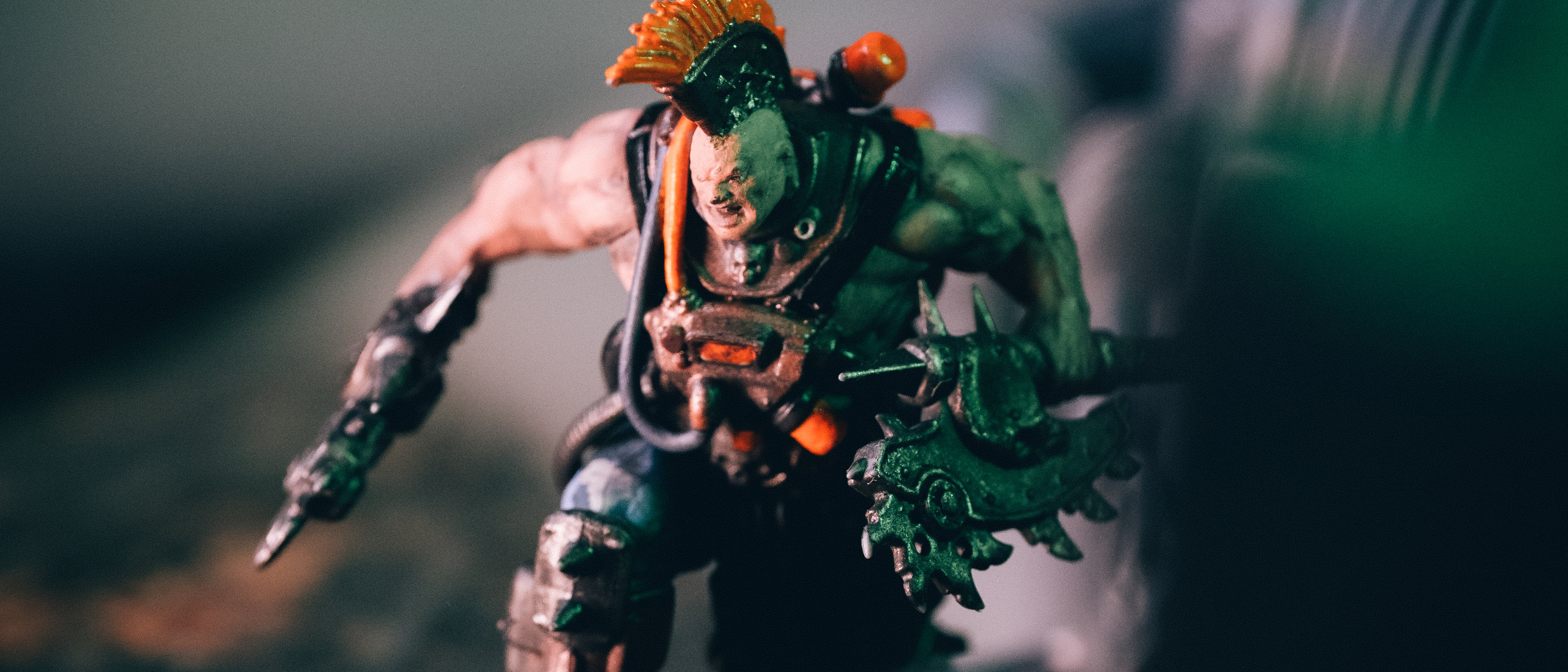
Printing out your gang’s cards is one of the easiest ways to keep track of stats, wounds, injuries and more during a game of Necromunda.
Gyrinx has powerful printing options, with support for “classic”-style, tabletop-ready cards, as well as custom list selections.
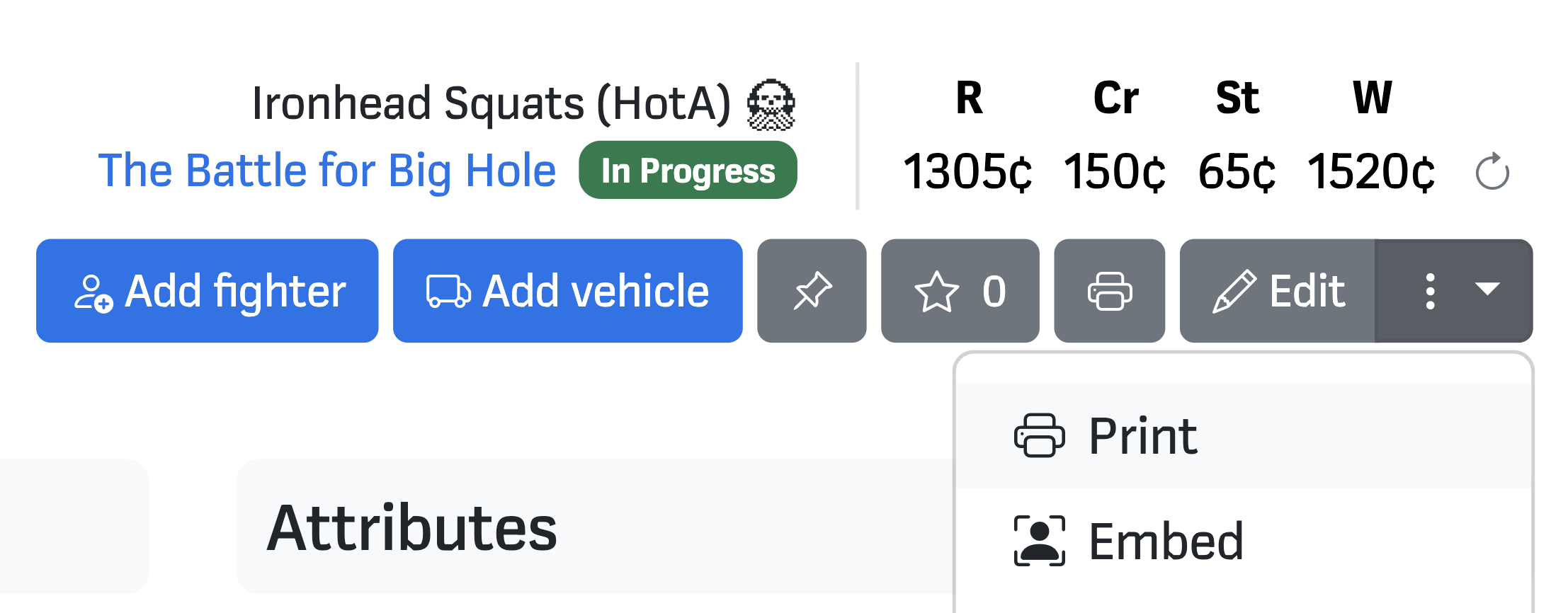
To access printing options for your lists, hit the printer icon or select Print from the drop-down at the top of the list page:
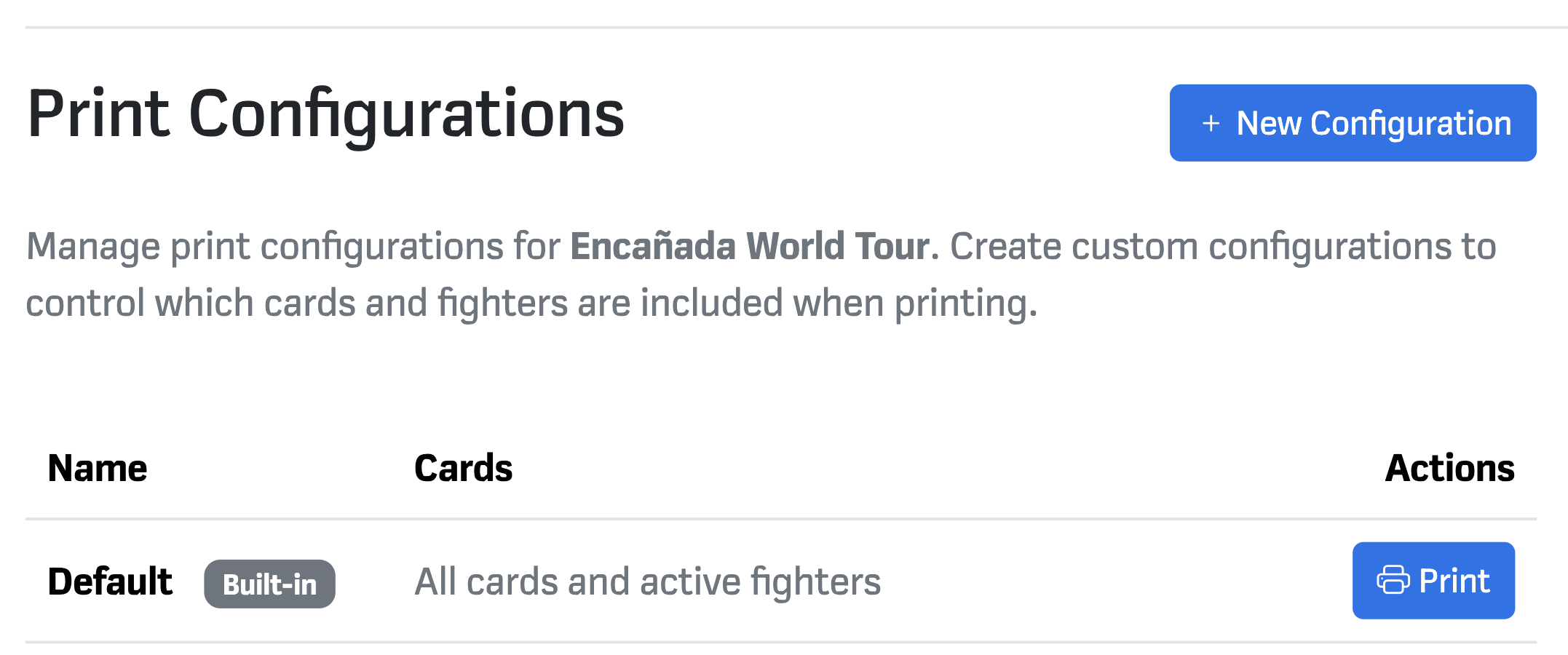
You’ll be taken to the Print Configurations page, where you can set up different printing modes.
Default printing
If you just want to print cards for all the active fighters in your list using Gyrinx’s standard card style, press Print by the Default configuration.
You’ll be taken to a printer-ready page — follow the instructions from your browser to proceed.
Classic cards, blank cards and further configuration
For more advanced options, hit New Configuration.
Classic cards
First, let’s look look at classic cards, which are designed to invoke a more grimy Necromunda feeling while also being easy to use.
Here’s an example of how a classic card can look, complete with helpful spaces for taking notes and tracking injuries, XP and Kills while you play.
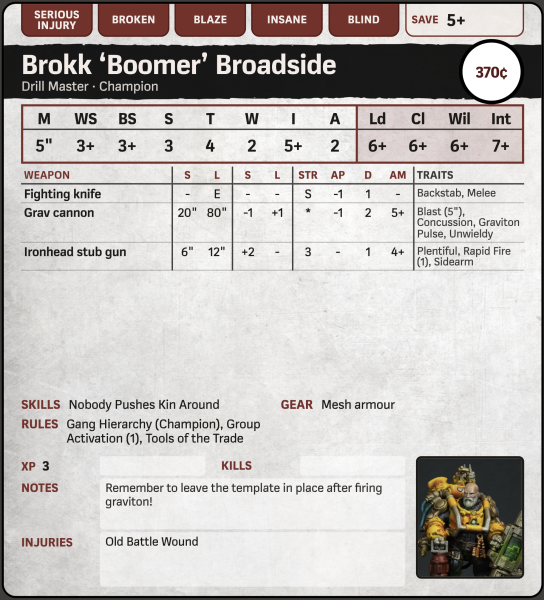
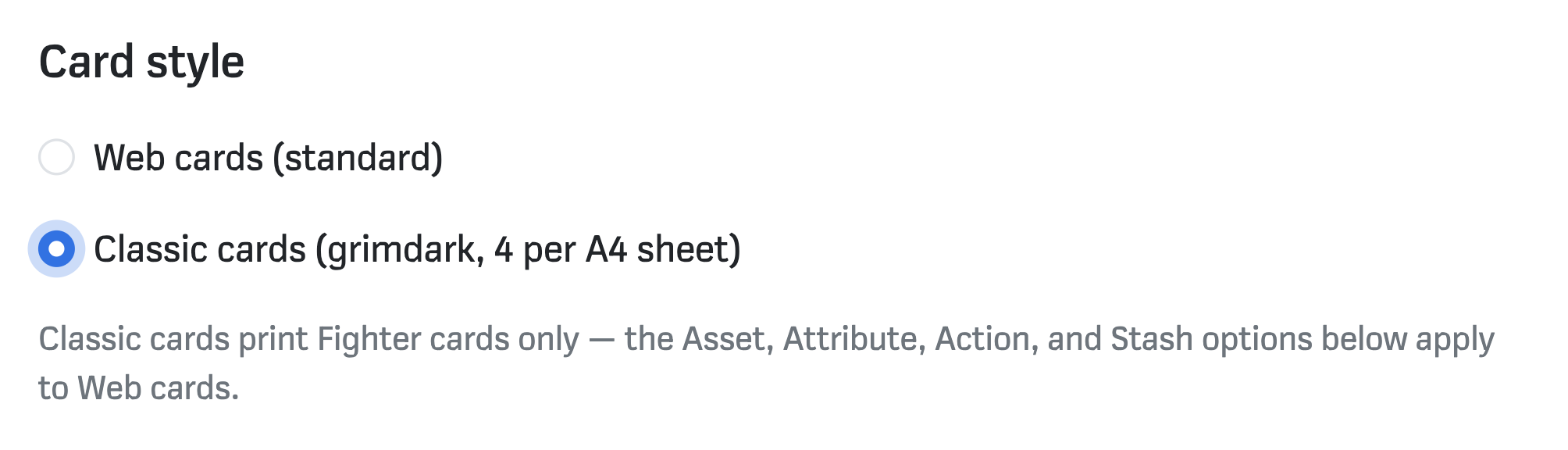
To enable them, select Classic cards under Card style:
Top tips:
- To enable a fighter picture, add one via the Lore tab on that fighter’s card
- To show a default armour save, add it via the Notes tab on that fighter’s card
- Currently, only fighter and vehicle cards display as classic cards. We’ll add support for other card types (such as Assets or Stash) in due course, but in the meantime we recommend combining two configurations to print both.
Configuration options
While you’re on the configuration screen, take a look at some of the other options: there are options to include or exclude your gang’s assets and attributes panel, its stash and action log, and cards for any dead fighters.
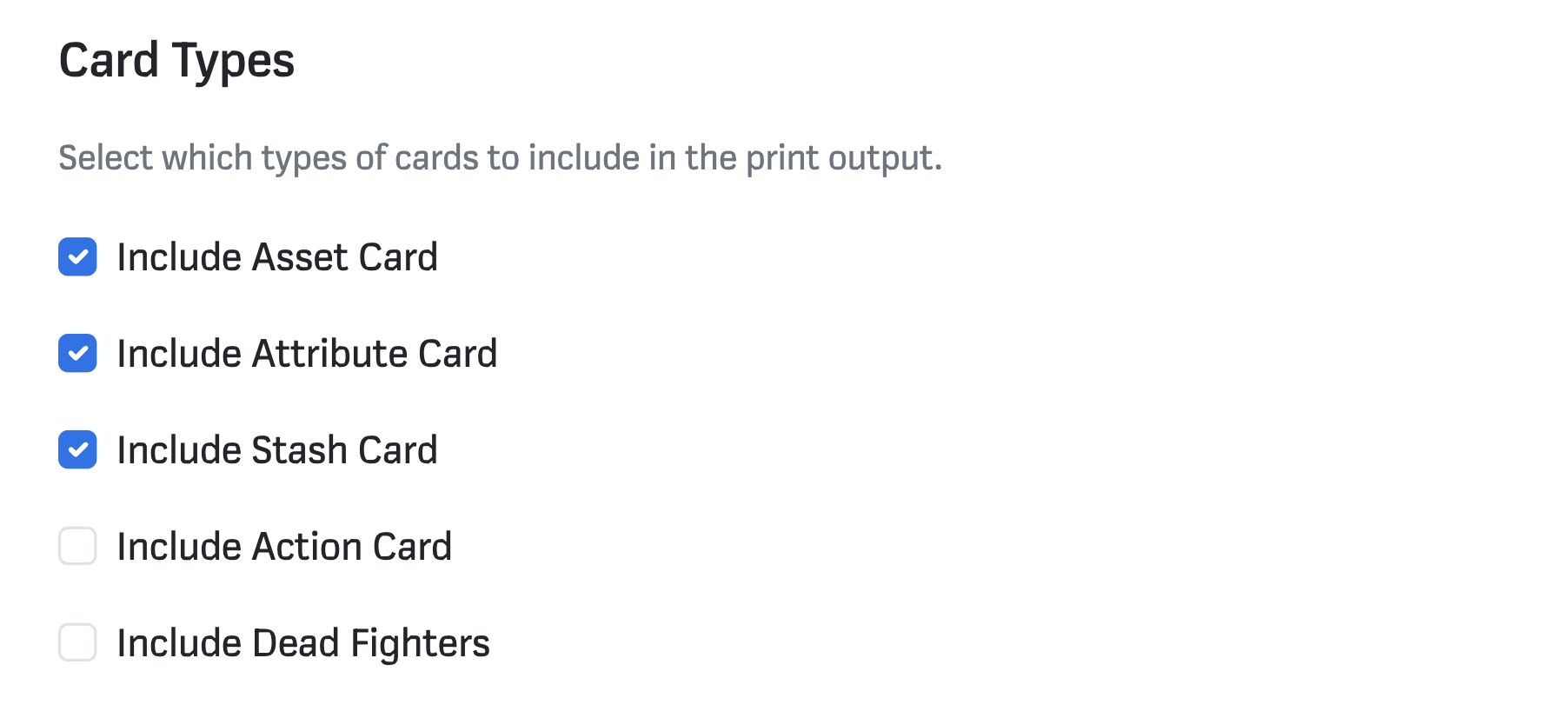
You can also specifically choose which fighters you want to include: this can be helpful if you’re heading to a small-crew scenario and know who in advance who you’ll be bringing.
Blank cards
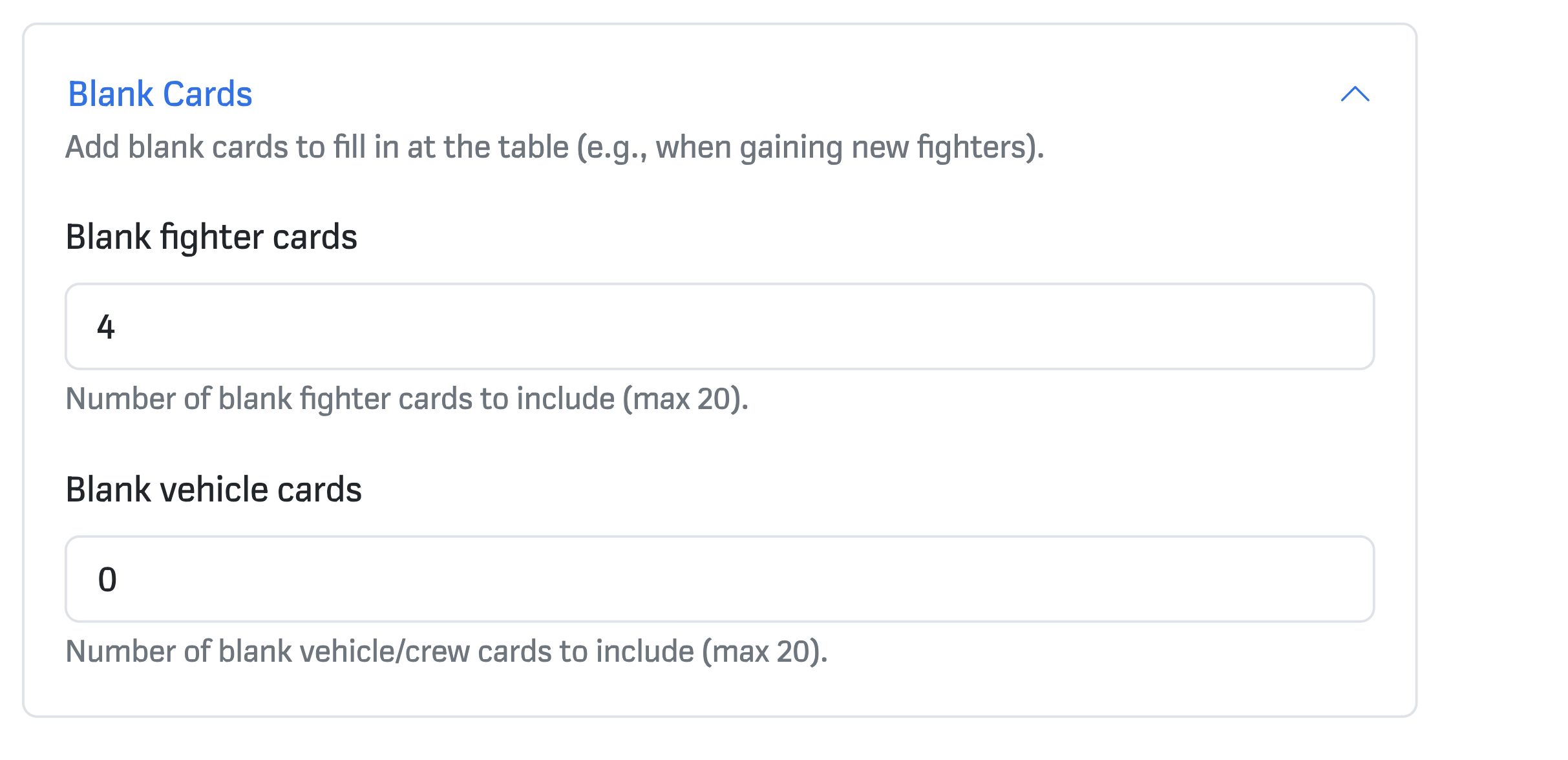
You can also specify a number of blank cards to print, which may be useful if you are playing multiple games, or if you might use tactics cards that generate temporary fighters such as Hive Scum. Hit the dropdown by Blank cards and enter your desired number of regular or vehicle cards.
Saving and printing
Once you’re happy, name the configuration and press Create Configuration.
You’ll be taken back to the Print Configurations page, where your new configuration will appear.
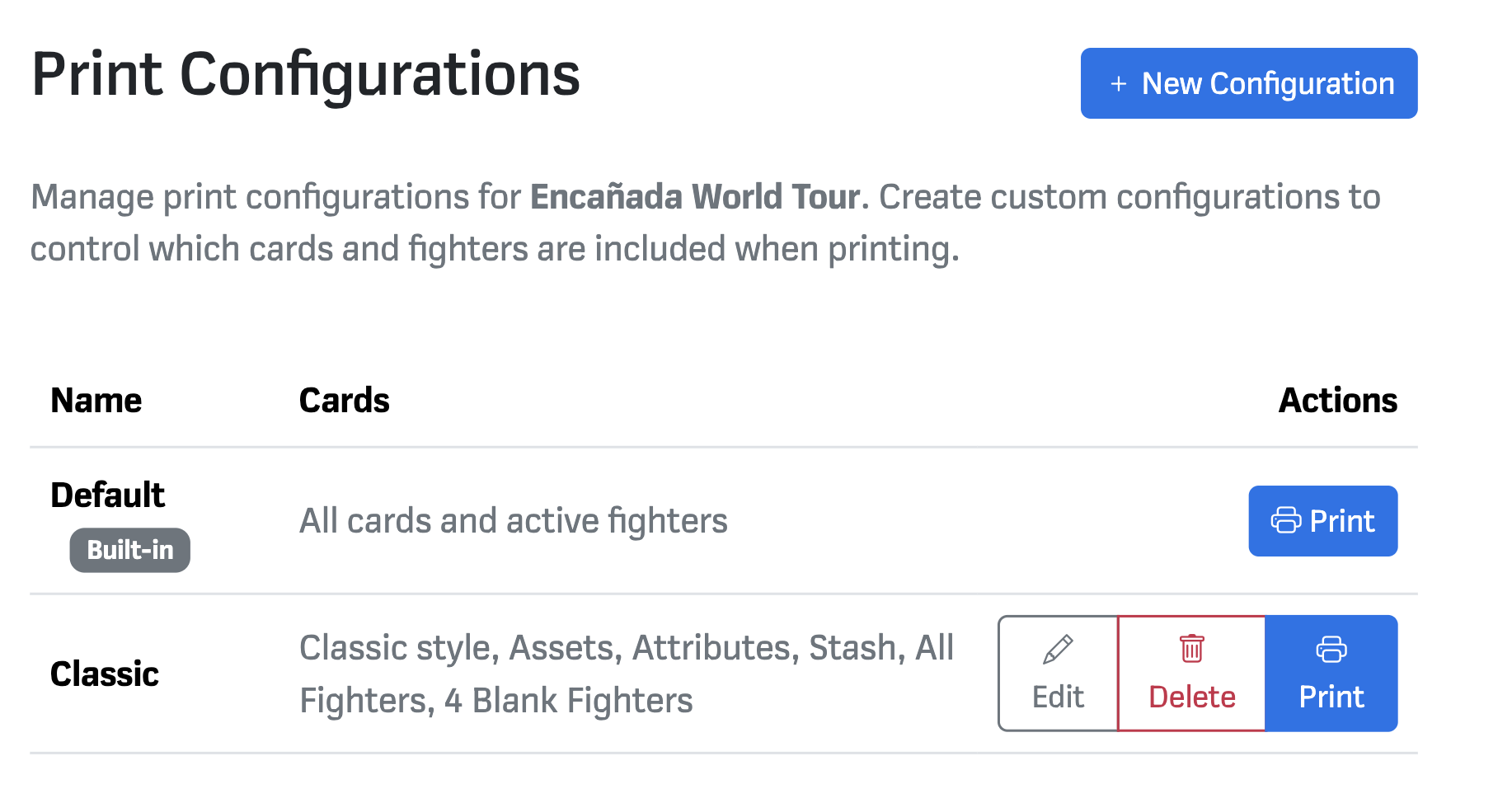
Hit Print, then follow your browser’s instructions. Your new cards should be with you soon — don’t forget to do a copy to your opponent!